
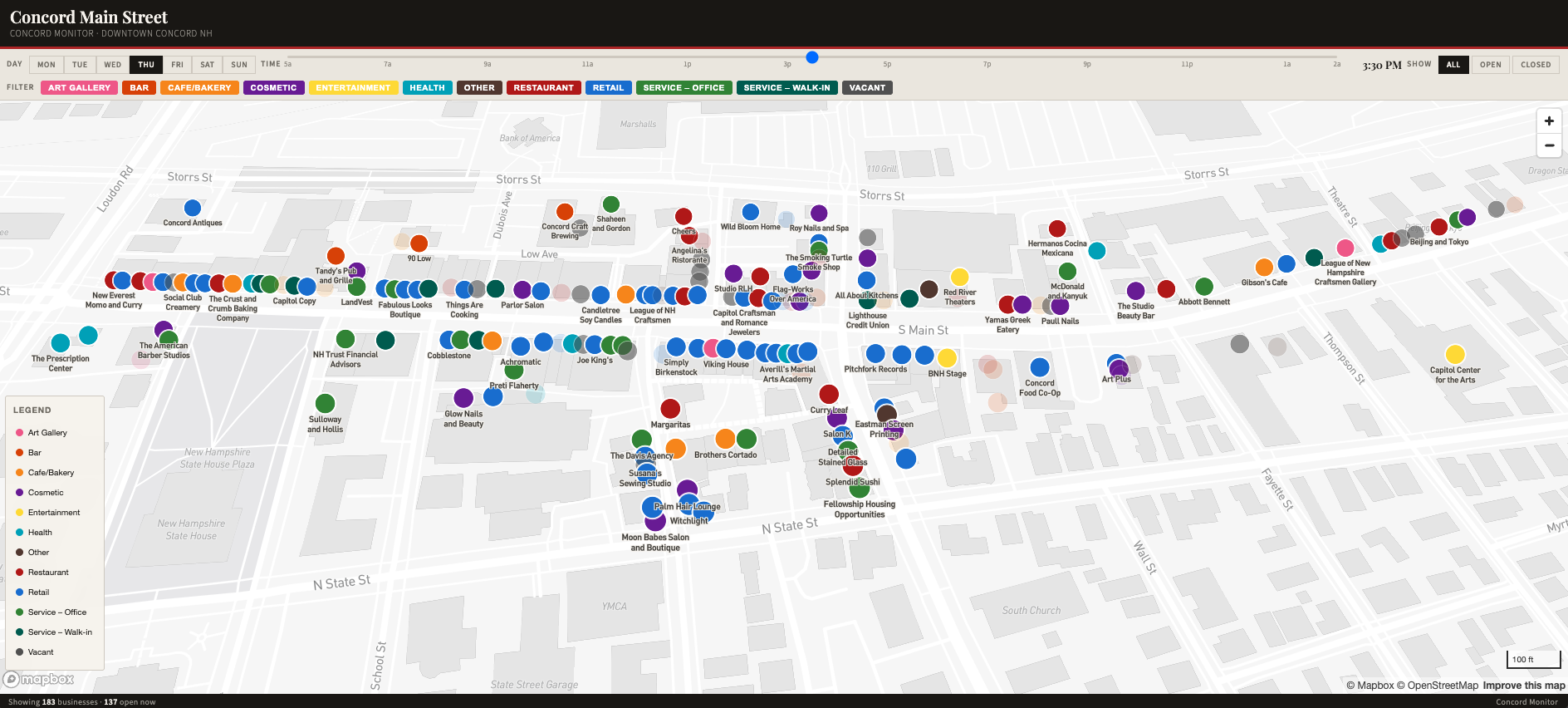
Read on for information about the On Main map and how to navigate it.
To view the map in full screen, click here.
This map shows downtown businesses on and adjacent to Main Street.
Each bubble indicates a storefront and its occupying tenant. The bubbles are color-coordinated by the type of enterprise in the space. Clicking on a bubble will reveal what’s there, how long it has existed at that location, and its hours of operation.
To see Main Street on different days and times of the week, use the day and time slider at the top. Slide the blue dot on the timeline throughout the day to watch businesses open and close.
To isolate one or a few different types of businesses, toggle the labels in the top toolbar.
To see all businesses, both open and closed, keep the “show” setting on “all” (closed businesses will appear in shadow). To see only businesses that are open or only ones that are closed, select those settings. You can also narrow the results to show only restaurants, for example. Note that empty storefronts are coded as closed at all times.
Scroll down to see instructions and help navigating the map.
Tip: If you ever get “lost,” refresh the page to reset.
On Desktop
To zoom in and out, scroll up and down or use the +/- button at top right of the map.
To adjust your location on the map, click, hold and drag, then release.
To change your orientation and viewpoint, right-click and hold – or use with two fingers on a trackpad if you don’t have a mouse.
To adjust the view angle (street view vs bird-eye) right-click and hold, then move your cursor vertically. To spin your viewpoint (viewing from the East or North instead of from the South) right-click and hold, then move your cursor horizontally.
On Mobile
The map should be viewed in “portrait,” or standard orientation.
To move around, simply tap and drag.
To zoom, tap and hold with two fingers. Spread your fingers apart to zoom in, and narrow them to zoom out. These mirror how you’d navigate a typical website, or Google Maps.
To adjust your view angle (street view vs bird-eye), tap and hold two fingers side-by-side and drag vertically.
To change your orientation (looking from the side or from the other side) tap and hold with two fingers and use a twisting motion.
Things to try
Now that you know how to move around, test out these views:
- Pick a few times of day (maybe lunchtime on a Thursday, or later Friday evening) and then click around as if you’re “taking a walk” down Main Street at that time. “Walk” down Main Street on a Sunday morning or a Saturday night. Compare that to a “walk” on a Tuesday morning or a Thursday night.
- Use the toolbar and click “open” to see only the open businesses. Set the slider to a time of day (10 a.m. or 5 p.m. are interesting places to start). Then click through each day from Monday to Sunday to see the variation throughout the week.
- Select the “vacant” category to see only the empty storefronts.
- Use it to plan your next trip downtown. If you know when you are headed downtown, use the map to show you what will be open when you get there.